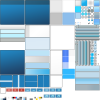



I discovered the UI files whilst looking into gun skinning and got sidetracked once I realised they could be tweaked. I'm not one to gatekeep knowledge when it comes to creative endeavours, so I present:
The UI Recolour Guide
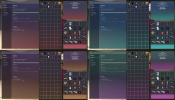
images from my 'pastel' recolours pack
The UI Recolour Guide
images from my 'pastel' recolours pack
Installation
In order to install UI recolours you will need the following file path in your Gmod addons folder:
PERPHeads UI themes (can be renamed) > materials > jarheads > uiskins
(You can locate your addons folder through right-clicking Gmod in the steam menu > properties > browse and looking in the garrysmod folder.)
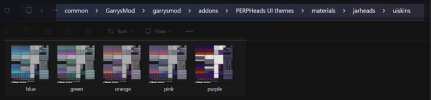
Note: The recolour folders I have attached to this guide already contain the necessary subfolders and can be drag and dropped straight into the addons folder.
Naming the Files
In order to be registered recolours must be named to override one of the pre-existing themes. Some of your recolour's scrollbars will use the default colour of these themes (i.e. overriding green will result in green scrollbars on the options menu).
Your recolour file must be named to one of the following in this list:
blue, green, red, orange, pink, purple, dark, silver
Creating your own
I have attached the default blue file to the bottom of this guide to cut out the most difficult part - you can find it under the attachments named 'blue'. If you want to do a specific edit of a different theme the rest can be extracted from the content pack by following this guide. To edit the themes my preferred program is Paint.NET (you don't need anything fancy - the textures are 512x512px). At this point you can do what you would like - if you are not confident with editing software the most simple edit you can start off with is shifting the hue.In order to be registered recolours must be named to override one of the pre-existing themes. Some of your recolour's scrollbars will use the default colour of these themes (i.e. overriding green will result in green scrollbars on the options menu).
Your recolour file must be named to one of the following in this list:
blue, green, red, orange, pink, purple, dark, silver
Creating your own
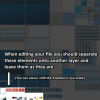
It is worth checking the contrast of any edits made to the buttons/storage menu headers etc. against the menu backgrounds to make sure they do not blend together.
Once your UI edit is complete you must name it to one of the 8 valid theme names (blue, green, red, orange, pink, purple, dark, silver) and save it as a png file.
In the screenshot below I have overlayed some labels that explain some of the different elements. Some elements are used for more than what they’re labelled as - this list is non-exhaustive.
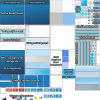
If you would like to visually investigate the different ui elements in-game I have also linked a folder containing a template test file I'd created to figure out what goes where. I have also included a collection of screenshots with this UI enabled in the folder so that you may cross reference the file with gameplay images.
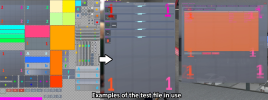
Files (google drive)
UI test file + Screenshots
My own custom themes
(the pack featured in the guide header is the 'pastel' pack)
Credit to @Clarky who's post from 2022 helped me figure out the installation path
would love to see recolours by others in the comments!